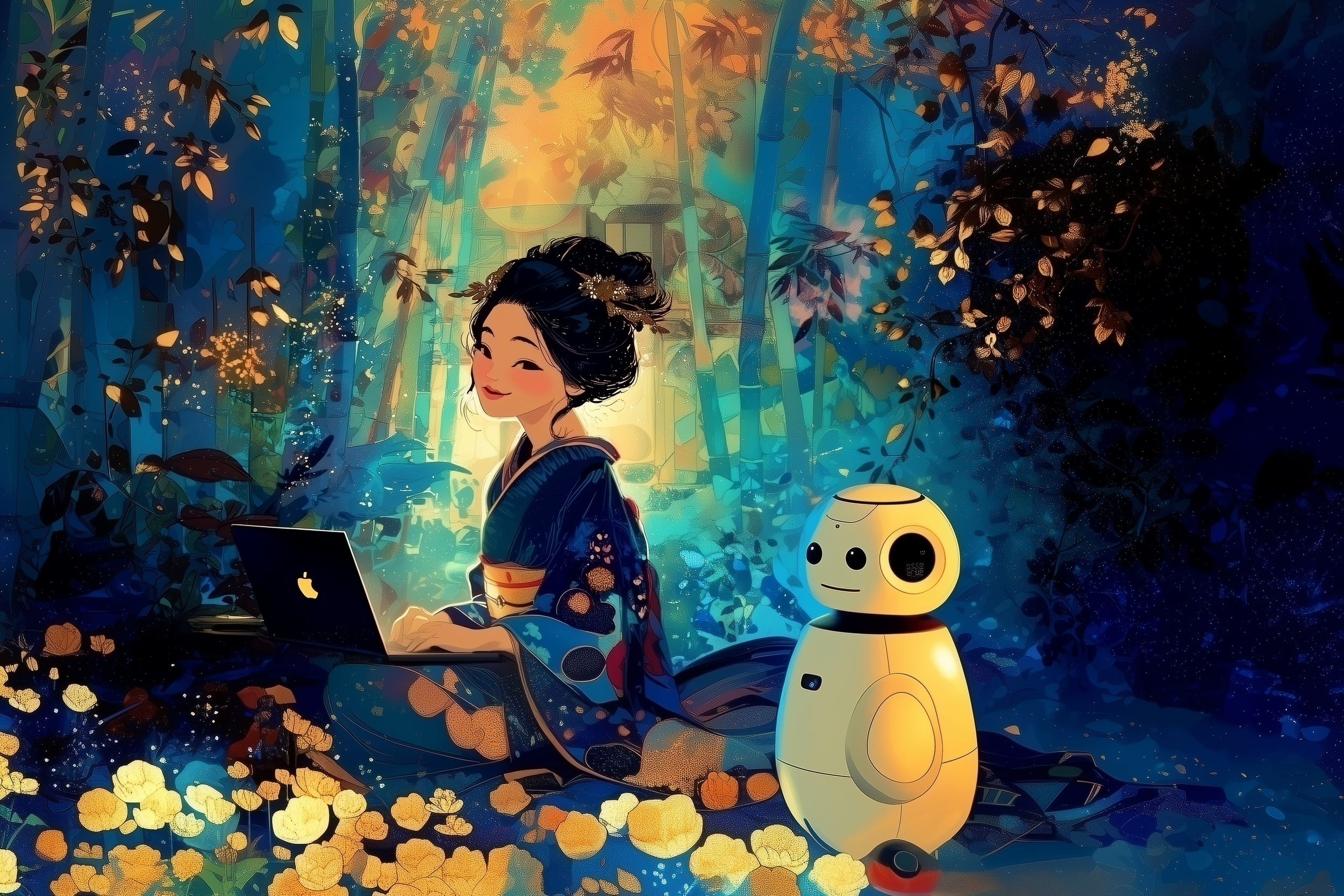
Hey! If you're reading Part 2, it means your "digital actor" is ready to go. Got that one perfect shot on a gray background? Great! Now, I’ll teach you how to make Midjourney "remember" that face and place it in any scene you can dream up.
Step 1: Uploading the "Template"
Take a look at the panel (the one in the screenshot below). See the "Upload a file" box or the plus icon?
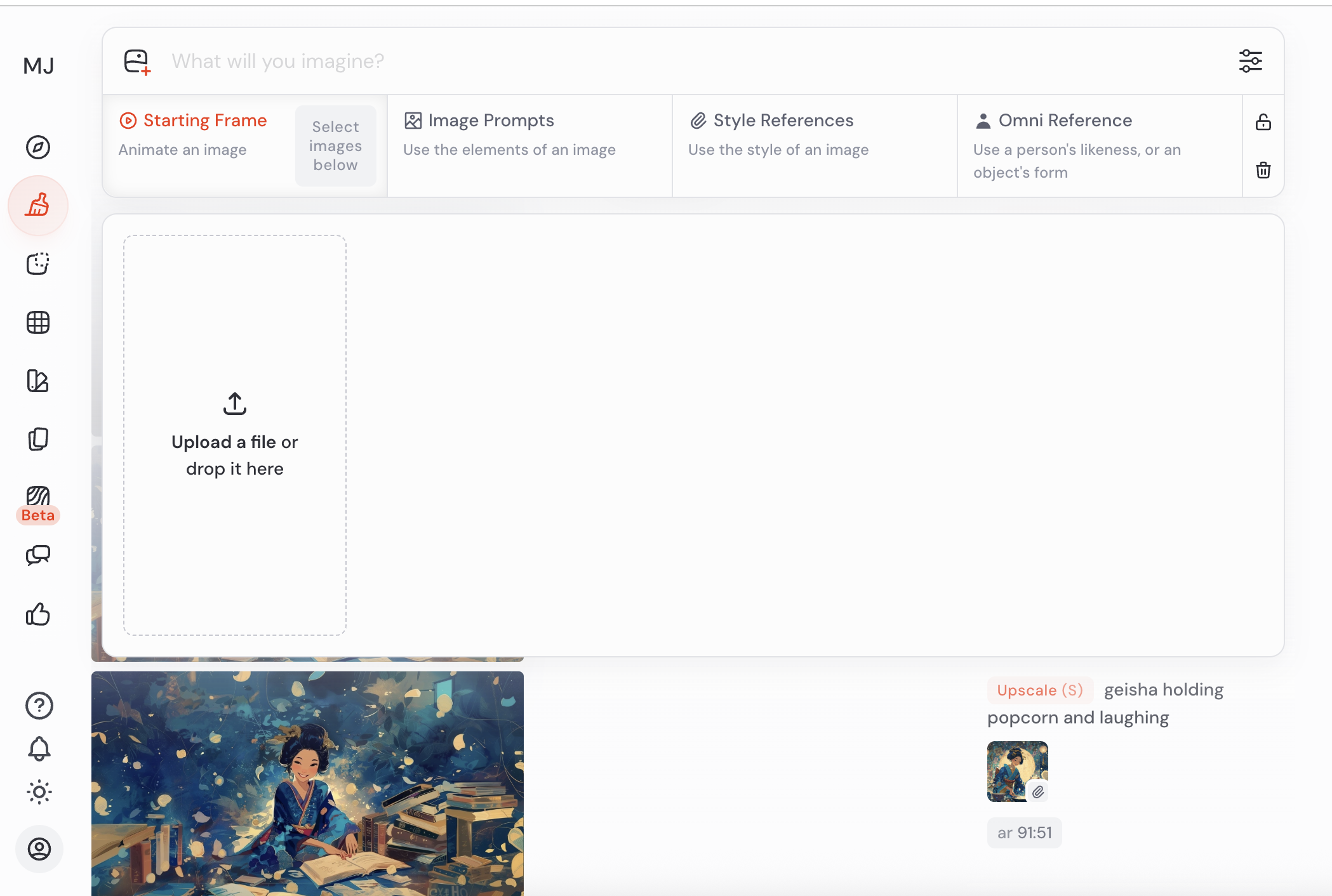
Upload the photo of your base character.
Once it's uploaded, drag it (or click the paperclip icon) into the Omni Reference section (that’s the little person icon at the top of the panel).
Why is this important? By doing this, you’re telling the AI: “Listen, from now on, whatever I type, use the face of this specific person from this image.”
Step 2: How to change what the character is doing
Most people think that once you upload a base character, they’ll just stand there like a statue forever. Not a chance! All you have to do is describe a new action in the "What will you imagine?" bar.
Changing pose and behavior: Instead of describing looks, describe the action.
Japanese geisha waving her hand to a friend
Japanese geisha eating popcorn and laughing (just like in my photo!)
Japanese geisha dancing in the rain
Adding items: Want her to hold something specific? Just add it!
Japanese geisha reading a giant ancient book
Japanese geisha holding a red umbrella
Adding pets: Simply add a companion to the scene.
Japanese geisha sitting with a golden retriever puppy
Japanese geisha with a small cat on her shoulder
Step 3: New Background – Send her on a journey
Now, let’s put it all together. Describe the action and the location at the same time.
Example: Japanese geisha reading a book in a cozy library, magical lighting --ar 16:9
Step 4: Watch out for "Image Baggage" (The Key to Success!)
Midjourney can be very literal. If your geisha is holding popcorn in the base photo, the AI might try to force that popcorn into every new scene. How do you avoid this?
In the settings (the sliders icon), you’ll find the Character Weight (CW) parameter:
CW 100: The AI copies everything: face, hair, and clothes. Perfect if you want to keep the same outfit.
CW 0: The AI takes only the face. This is crucial if you want to change her pose (like waving her hand) or her outfit (like swapping a kimono for a tracksuit). At CW 0, your character becomes flexible!
In the next post (Master Workshop), I’ll show you how to use the Smart Select and Erase functions to precisely fix details without regenerating the whole image from scratch!
Let me know in the comments if you managed to get your characters moving! 🏮🍿
