As you know, my love of board games started a year ago, and it’s still going strong. I now own more than 300 games, and of course I’m always eyeing new ones. So I added “a few” more features.
In my previous post about Meeple Log, I wrote about how I built the app, what vibe coding is, and walked you through screens 1 to 9. This time, I’m showing you some more additions: from my collection shelf and wishlist to a wheel that picks a game for me.
Screen 10: My Shelf — More Than a List of Games 📚
A game list is useful for logging plays, but I soon found myself needing an answer to another question: do I actually own this game? So My Shelf tracks not just what I’ve played, but the status of my collection too.
I can record the price and purchase date for each game, then mark it as owned, ordered, lent out, borrowed, given away, or sold. That distinction matters: a game in my journal isn’t necessarily a physical copy on my shelf. My journal can also include games I’ve played on BGA but don’t own.
My Shelf has search, sorting, and ready-made views. I can filter by games I own, games on order, games I’ve lent out or borrowed, games I’ve given away or sold, games I’ve never played, and games I haven’t played since buying them. Each game also shows how many times I’ve played it and the date of my last play. Expansions can be linked to a base game and tucked underneath it, so my shelf doesn’t turn into a catalogue of every box I own.
Prompt for the Agent:
Add a separate “My Shelf” section, independent from the list used to log plays. Each entry should have a status: owned, ordered, lent out, borrowed, given away, or sold. For games I own, let me record the price and purchase date. Distinguish physical copies from titles that are only in my journal or that I’ve played on BGA.
Add search and sorting by name, purchase date, price, last-played date, and status. Add filters for owned, ordered, borrowed, sold, given-away, never-played, and not-played-since-purchase games. Show the number of logged plays and the date of the last play for each game. Let me link expansions to a base game and collapse them underneath it.
If you want to keep track of games you’ve lent out, it’s worth spelling out what information the app should save:
Prompt for the Agent:
When I lend out a game, record who borrowed it, the date it was lent, and an optional due date. Show a list of games that are still out, let me mark them as returned, and keep a history of previous loans. Show overdue returns separately.
Screen 11: My Wishlist — A List I Can Share 🎁
A list of the games I already own isn’t quite enough to keep my shopping FOMO in check. That’s why I added My Wishlist: a separate place for games I’d like to get someday — or receive as a gift.
I can add a game by choosing a suggested title, then mark whether it’s a standalone game or an expansion. If I pick a game from the catalogue, the app can add its cover image too.
I can share my list with a separate link. Visitors can see the titles, cover images, and whether a game has already been bought. They can also mark a game as purchased without creating an account. They can’t see my full collection or play history. It’s much easier than trying to remember every game I’ve mentioned since the beginning of the year. 😆
Prompt for the Agent:
Add a separate “Wishlist” that doesn’t change a game’s status in my physical collection. Let me add a title from the catalogue or enter one manually. For each item, let me mark whether it’s a standalone game or an expansion, and show the cover image if one is available.
Add a separate link for sharing the list. Anyone who opens it should see only the titles, cover images, and whether each game has been purchased. Let them mark a game as purchased without logging in. Don’t show them my shelf or play history.
Be specific about exactly what someone with the link can see and whether they can make changes. A simple “share the list” leaves the Agent too much room to guess.
Screen 12: Custom Lists — For Games I Want to Play on a Particular Occasion 🗂️
Alongside the ready-made views, I can create my own lists. I have lists for Solo, Two Players, and Three Players. I could also make one for a trip, an evening with a particular friend, or games I really need to get to the table.
I can create, rename, and delete lists, and add or remove games. A game can appear on more than one list. Adding it to a list doesn’t change its status, play history, or purchase details.
Prompt for the Agent:
Add the option to create custom game lists. The account owner can create a list with a custom name, rename or delete it, and add or remove games. A game can belong to more than one list. Lists must not change a game’s status, play history, or purchase details. Show the number of games on each list.
If you want your lists to stay private, add one more line:
Prompt for the Agent:
Custom lists are visible only to the account owner. Don’t include them automatically when sharing a public link to the shelf.
Screen 13: Shelf Stats — What Do I Actually Own? 📊
Play stats answer the question, what do I play? Shelf stats answer a different one: what do I own, what have I lent out, and what’s sitting unplayed?
Here I can see a summary of the games I own and have on order, games I’ve lent to other people, games I’ve given away or sold, and games I haven’t managed to play yet. Clicking a stat opens a list of the matching games instead of leaving me with a number and no context.
Prompt for the Agent:
Add a separate collection stats tab to My Shelf. Show the number of games owned, ordered, lent out, borrowed, sold, and given away. Also show games that have never been played and games that haven’t been played since purchase. Clicking any number should open a list of the matching games.
If the purchase date is unknown, don’t count the game as “not played since purchase” as if the date were known. Show separately when purchase dates are missing.
That last detail helps avoid stats that look precise but rely on information the app doesn’t actually have.
Screen 14: Share Available Games with Friends 🔗
Friends sometimes ask which games they can borrow from me. Instead of making a new list every time, I can share a link to the games that are physically available.
The link shows the titles and cover images of available games, but not their prices, private notes, or play counts. I can turn the link off, which makes the old address stop working.
Prompt for the Agent:
Add an option to share available games using a link. The link should show only the titles and cover images of physical games available to borrow. Don’t show prices, notes, ratings, play history, or information about people I’ve lent other games to.
Let the account owner copy the link and disable it at any time. Once disabled, the old link must no longer show the list. Make it clear that anyone with the link can open it.
It’s especially important to spell out the privacy boundaries here. A link to a game list might seem harmless, but without clear instructions the app could share more than you intended.
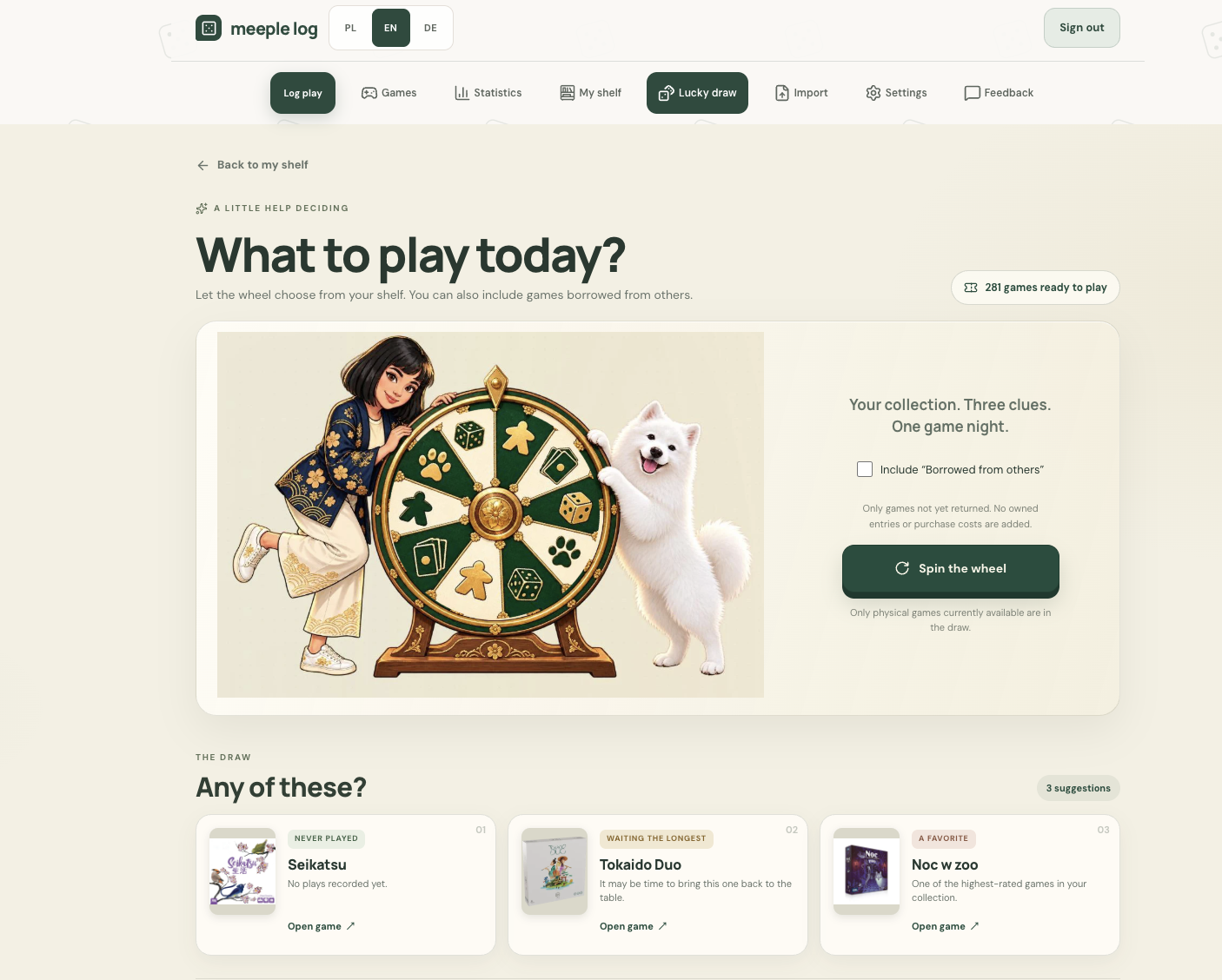
Screen 15: Lucky Draw — When Choosing a Game Is Harder Than Playing One 🎡
With a big collection, “What should I play tonight?” can take longer to answer than it takes to set up the game. Lucky Draw picks one for me with a spinning wheel.
It only draws from physical games that are currently available, though I can choose to include games I’ve borrowed. The result doesn’t log a play or change anything on my shelf. It’s just a little nudge to help me decide.
Prompt for the Agent:
Add a “Lucky Draw” page with a wheel that picks a game from my shelf. Draw only from physical games that are currently available. By default, exclude games I’ve lent out, sold, given away, or ordered. Add a toggle for “Include games I’ve borrowed.”
After the draw, show the game title, but don’t log a play, change the game’s status, or modify anything else on my shelf. If there are no eligible games, show a message instead of an empty wheel.
It’s also worth explaining what the draw shouldn’t do. Otherwise, the Agent might connect the result to the journal and log a play that hasn’t happened yet.
Screen 16: Shelf Tools — Filling in and Tidying Up Your Data 🧹
As my shelf grows, it’s easy to lose track of a cover image, price, or purchase date. That’s where the Missing Data view comes in: it shows me which games are missing that information. I can pick a category and fill in only what I care about.
I didn’t want the app quietly editing my entries or guessing prices. So the tool shows what’s missing, but doesn’t change anything on its own. I can also hide prices while browsing the shelf. That changes only what I see; it doesn’t remove prices from the saved data or exports.
Prompt for the Agent:
Add tools for finding games without a cover image, price, or purchase date, and expansions without a linked base game. Let the account owner choose a category and fill in entries manually. Don’t change or delete any data automatically. Before saving changes, show the account owner what will be changed.
Add a “Hide prices” toggle that hides prices only in the shelf view. Don’t let it change saved prices or exported files.
If the Agent is helping with cover images, it’s best to break that process into steps: find suggestions, show which title each one matches, then let me approve a choice.
Prompt for the Agent:
Suggest cover images for games that don’t have one. Show which title each suggestion matches, and let me approve it, reject it, or choose another image. Don’t overwrite my own cover images or any choices I’ve already saved.
Linking Expansions and Similar Entries 🧩
If I have several expansions for one game, I can link them to the base game in a batch. That action should change only the links — not the names, purchases, or play history.
Prompt for the Agent:
Add a tool for linking multiple existing expansions to one base game. Show a preview of the changes first. Once approved, change only the link between each expansion and the base game. Don’t change names, plays, prices, purchase dates, or loan history.
Similar titles might be duplicates, but they might also be different editions or an expansion. The app can suggest possible matches, but I should decide whether to merge them.
Prompt for the Agent:
Find possible duplicates based on similar names and show them as suggestions for review. Don’t merge entries automatically. Let me merge them or keep them separate. Before merging, show what will happen to play history, purchases, and loans. Preserve all the data after the merge.
Screen 17: Exports and Import History 📂
If I’ve put a lot of work into the app, I want to be able to download a copy of my data. I can export my shelf as a JSON file or an Excel spreadsheet. JSON contains more complete data, while Excel is easier to browse.
These files are meant for viewing and analysing data, not for restoring my entire shelf in the app. A shelf export may contain private prices and loan information, but it doesn’t include play history or cover image files. So it’s important to be clear about exactly what’s in the export and what it can be used for.
Import history is a separate feature. It lets me check what was added during an import and what can be undone. The Agent also needs clear instructions on what to do with later edits and with imported data that has since been linked to plays or loans.
Prompt for the Agent:
Add shelf exports in JSON and Excel formats. The JSON file should contain the full shelf data, and the Excel file should be a readable table. Before downloading, tell the account owner that the file may contain prices and loan information. Also explain that the export doesn’t include play history or cover image files and can’t be used to restore the shelf.
Add an import history with the option to undo a selected import. Undoing an import should affect only entries created by that import, preserve later edits, and not delete records linked to plays, purchases, or loans. Show a summary of the changes before undoing the import.
Screen 18: Feedback — Help Me Find the Next Thing to Fix 💬
There’s also a feedback form. I can report a bug, suggest an idea, or send another kind of comment. I can find my own submissions later in the My Submissions tab.
Prompt for the Agent:
Add a feedback form with the categories: bug, idea, and other. Require a short message, show a character limit, and let the account owner view their own submissions in a “My Submissions” tab. Explain who can see them. Don’t ask for passwords or other sensitive information.
The Most Important Thing This Project Taught Me 🔄
For new features, the same rule applies as when logging a play: describe the situation, the information you need, and the result you want.
“Add a shelf” is only a starting point. “Show owned and ordered games separately, let me save the price and purchase date, and open a list of matching games when I click a stat” gives the Agent a much better plan.
Then I have to click through the feature and check it. Does search find a game when I enter only part of its title? Did an expansion accidentally end up as a separate base game? Does marking a game as borrowed change its price or play history? AI can build a lot, but I still have to make sure it built what I actually need.
That’s how you end up with a tool that fits your life: not by starting with the perfect prompt, but by starting with real needs, testing, and making changes as you go.
And finally, the most important question: are all these features useful? Yes.
Have they made me buy fewer games? Nope. 😆
You’re welcome to try Meeple Log: meeplegirl.com
