How to Create Your Own Pet in ChatGPT?
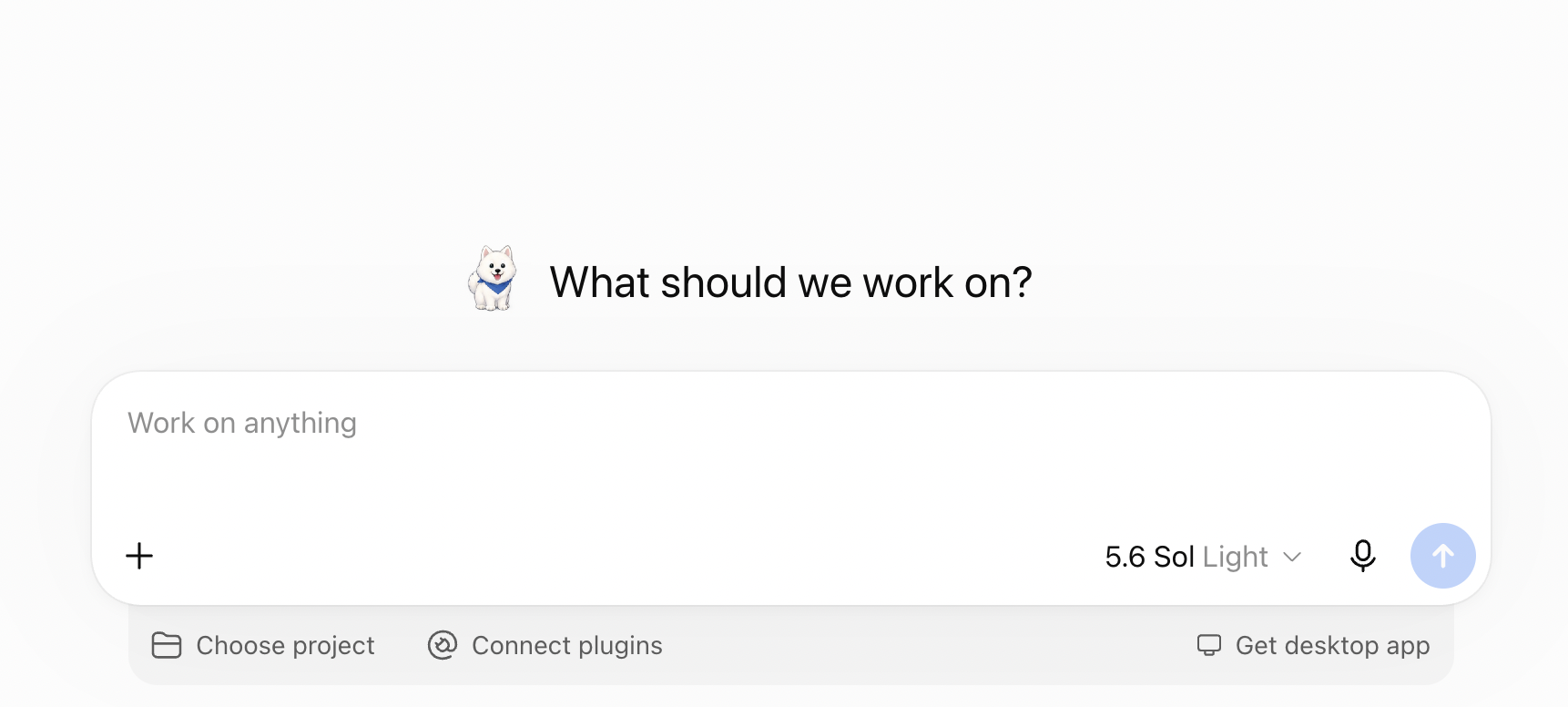
Today I want to show you a new ChatGPT feature — the pet!
As you know, I try to use pretty much every AI tool out there. Okay, maybe not every single one, but most of them. 😉 They're all racing to out-feature each other, so each one ends up being useful for something different. At work I mainly use Claude, since it connects to all my systems. Outside of work I use Grok, Gemini, and ChatGPT. ChatGPT is mostly my "just chatting" tool. XD I talk things through with it, get extra perspectives, and organize my thoughts. While I was setting up ChatGPT for my mom recently, I spotted a new option I just have to share with you. Because who wouldn't want their own pet hanging around while they talk to AI?!
Literally everyone would!!!!!!!
And since I'm completely obsessed with my dog, I obviously want Pablo. 🙂 But before we get to creating a pet, it's worth covering ChatGPT personalization in general, since that's what makes this possible. You can shape your AI's personality and how it talks to you.
How do you set ChatGPT's personality? 🎭
Let's start with conversation style and tone. You can change these settings in the browser, the mobile app, or the desktop app.
In the browser:
Open ChatGPT and log into your account.
Click your profile picture.
Select Settings.
Go to the Personalization tab.
Find the Base style and tone section.
Click the dropdown.
Pick whichever personality suits you best.
Changing the personality doesn't touch ChatGPT's actual abilities — it only changes the style it uses to talk to you. So you can go more formal, calm, warm, blunt, or a little eccentric, depending on what you're after. Whatever you pick also applies to conversations you'd already started.
How do you change the response style? ✨
If you want even finer control over how ChatGPT communicates, check out the Characteristics section, also under Personalization.
There you can dial in things like:
Warm — how warm the responses feel,
Enthusiastic — how much enthusiasm ChatGPT brings,
Headers & Lists — how often it reaches for headers and bullet points,
Emoji — how often it uses emoji.
For each one you can pick the level you want, or just leave it on default.
That means ChatGPT can answer very plainly and calmly, or bring more energy, sprinkle in more emoji, and break things into clear, skimmable sections.
How do you add custom instructions? ✏️
In that same tab, there's a Custom Instructions section.
This is where you tell ChatGPT directly how you want it to talk to you, and what it should keep in mind when answering.
To add custom instructions:
Open Settings.
Go to the Personalization tab.
Click Custom Instructions.
Make sure Enable customization is toggled on.
Type in your instructions.
Save your changes if a save button shows up.
You don't need a fancy, technical prompt here. Something like this is plenty: Talk to me in Polish. Refer to yourself using masculine grammatical forms. I like a casual tone, direct answers, and a sense of humor.
I, for one, put in that I'd rather talk to a guy than a woman. XD No judgment, please!
How do you add info about yourself? 👩💻
Personalization also lets you tell ChatGPT more about who you are.
Fields you can fill in include:
Nickname — what ChatGPT should call you,
Occupation — what you do for work,
More about you — anything else worth knowing.
You can write about your job, your interests, how you like to communicate, or anything that tends to come up in conversation. In my case, ChatGPT knows I run a startup, write a blog, love Japan, art, and board games, and have a Samoyed named Pablo. That way I don't have to re-explain my whole life every time I open a new chat.
Obviously, don't put passwords, banking details, or anything else sensitive in there.
So what exactly is a pet in ChatGPT? 🐾
A pet is an optional animated companion that shows you what's going on in your conversations. It doesn't change what ChatGPT can do or how it does it — it's purely a visual thing that keeps you company while you work.
In the desktop app, the pet can float above your other windows and give you a heads-up on where your chats stand.
For example, it can show you that:
ChatGPT is still working,
ChatGPT needs your input or a decision from you,
a task is done,
something went wrong along the way.
If you've got several conversations running at once, the pet prioritizes flagging the ones that actually need your attention. Is it a must-have feature? Not really. Does it make watching AI work a lot more fun? Absolutely.
How do you pick a ready-made pet in the desktop app? 🐶
To get the animated, floating pet, you'll need the ChatGPT desktop app.
Then:
Open the ChatGPT desktop app.
Click the profile menu at the bottom of the app.
Select Pets. Or you can just go to: Settings → Pets
Then:
Pick one of the ready-made pets.
Open any conversation.
Type: /pet Or open the command menu and choose Wake Pet.
Your pet will pop up on screen and start tagging along as you use ChatGPT.
To tuck it away again, just type /pet once more.
Or pick Tuck Away Pet from the command menu, or go to Settings → Pets → Tuck Away Pet.
The app remembers your pet's position and which one you picked, even after you restart it.
How do you create your own pet? 🎨
You can go with one of the ready-made companions, or build a completely custom one. I obviously went for Pablo. And ChatGPT — funny enough — immediately suggested a fluffy white Samoyed. 😉
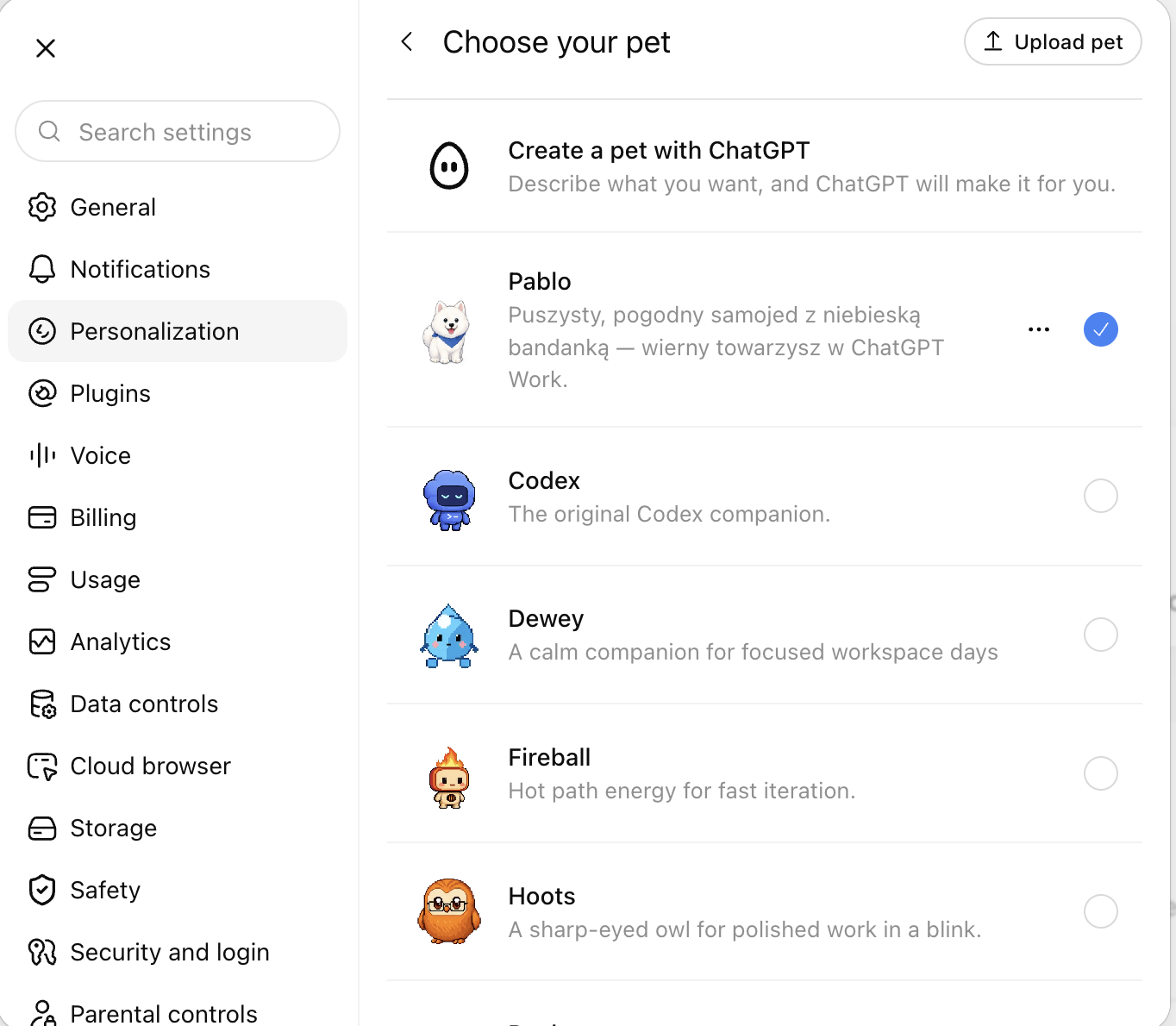
You create a custom pet from the ChatGPT desktop app:
Open the ChatGPT app on your computer.
Go to Settings.
Select the Pets tab.
Click Create your own pet.
The app automatically installs the built-in hatch-pet skill.
ChatGPT refreshes its list of available skills.
A new conversation opens automatically.
In that new chat, describe the pet you want.
Send the message and wait for ChatGPT to finish.
Head back to Settings → Pets.
Click Refresh.
Pick your brand-new pet from the list.
Your pet only shows up in settings — and becomes selectable — after you refresh the list.
What should you actually write when creating a pet? You don't need anything technical or complicated. Just describe the animal in plain words. Here's roughly what I wrote: I want to create Pablo — a white, super fluffy Samoyed. He should look happy, curious, and a little cheeky. He should look like my real dog: a big fluffy tail, black eyes, a black nose, and that classic Samoyed smile.
ChatGPT might follow up with questions about how the pet should look or act.
You can also ask for specific tweaks, like:
"Give him a fluffier tail."
"Make his smile bigger."
"Make him look more like a Samoyed."
"Give him Pablo's signature look."
"Make him goofier and a bit less well-behaved."
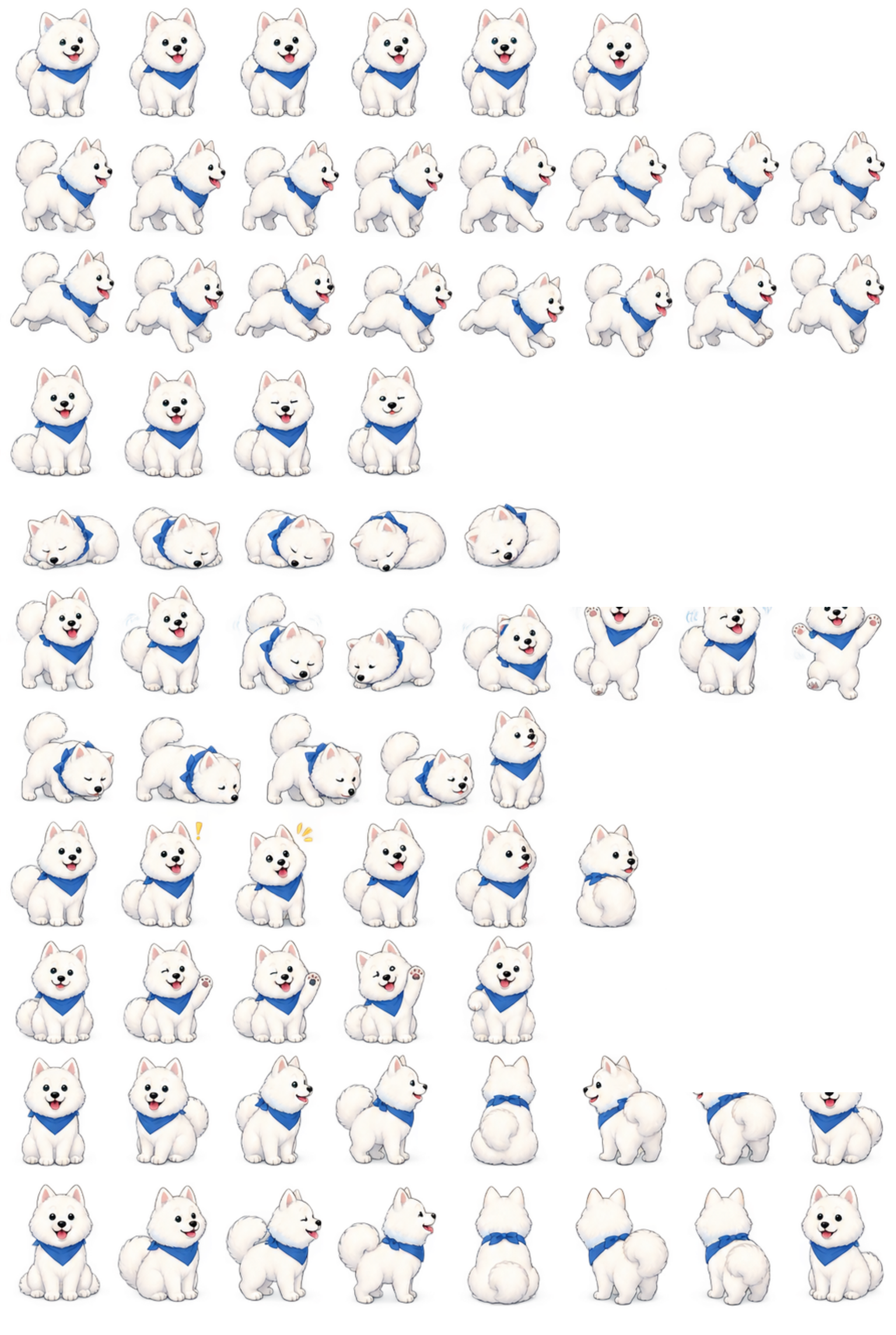
ChatGPT builds the pet based on your description. Once it's done, head back to Settings → Pets, hit Refresh, and select it from the list. And the result of all that back-and-forth? Pablo, obviously. 🙂
Heads up: your custom pet won't automatically show up in the browser. Custom pets made in the desktop app are stored locally on your computer.
That means a custom pet doesn't automatically sync to the browser version of ChatGPT. If you create one on the desktop app on one machine, don't expect it to show up when you open ChatGPT in a browser, or on another device.
So here's the key difference between personalizing how ChatGPT talks and creating a pet:
personality, characteristics, and custom instructions can all be set in the browser,
but your own animated pet is created in the desktop app,
and a custom pet is saved locally, on that one computer.
How do you pick a pet in the browser? 🌐
If Pets is available on your account and workspace, you can pick one of the ready-made pets right from the browser.
To do that:
Open Settings.
Go to Personalization.
Select Pet.
Click Select pet.
Choose one of the available options.
If you'd rather skip pets entirely, just pick Default.
So the browser lets you choose a ready-made companion, but building your own from scratch is a desktop-app-only thing.
Not seeing the Pets option?
Pets may not be rolled out to every account or workspace yet.
If you don't see it:
Make sure you're on the latest version of the ChatGPT app.
Close and reopen the app.
Check both the profile menu and Settings → Pets.
In the browser, check Settings → Personalization → Pet.
On a business account, availability may also depend on your workspace settings.
Still nothing? Check back again in a few days.
For me, the feature showed up on a ChatGPT Plus account. I haven't checked whether it's available on free accounts too, so I can't say for sure that Plus is officially required.
OpenAI has only said that the option to pick a pet in the browser shows up once the feature is available for your account and workspace.
Is it actually worth personalizing ChatGPT?
I'd say yes — even if you have zero interest in having your own Pablo. Setting up the personality, tone, and custom instructions takes a few minutes, tops, and it makes everyday conversations noticeably smoother. Right from the start, ChatGPT knows whether you want a formal breakdown, a quick answer, help sorting out your thoughts, or just a casual chat.
And the pet?
The pet won't write you a better report, won't analyze your data, and won't answer your messages for you. But it will show you when ChatGPT's still working, when it's done, or when it's waiting on you. And it gets to do all that while looking like Pablo. Do I really need anything more? I don't think so. 😉
